ColorTracer
ColorTracer is a tool that extracts the contours around colored objects in images. It can for example turn a drawing on paper into a correctly scaled 3D model that you can 3D print.
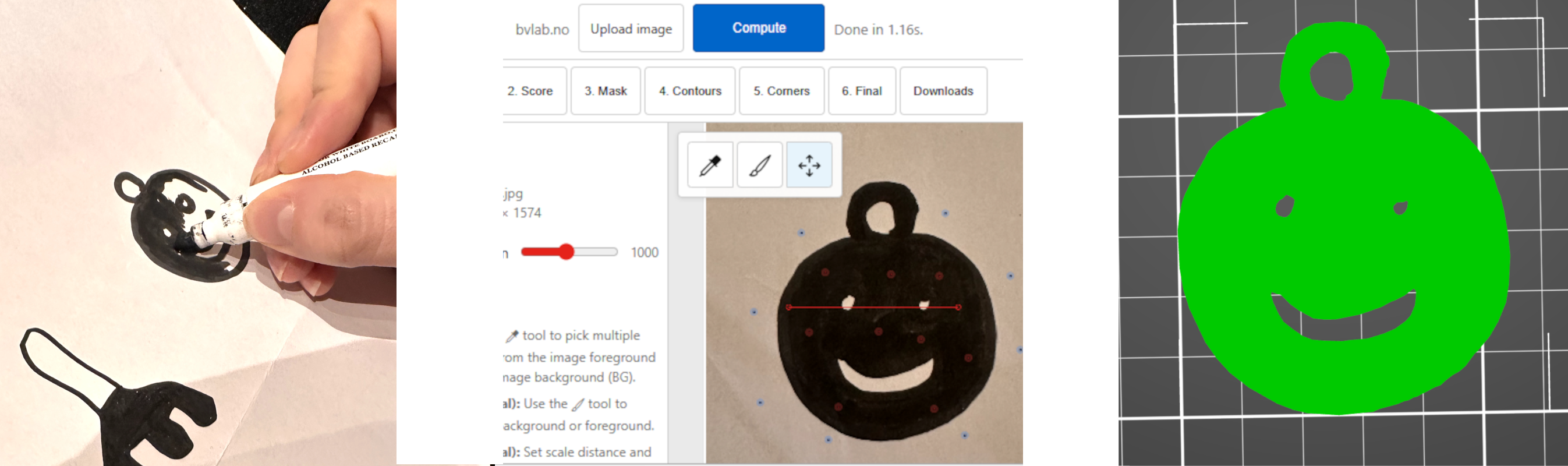
You tell the tool which colors belong to the object (foreground) and which belong to the background by clicking on a few spots of each. It then finds the edges between them. If it gets some areas wrong, you can paint corrections. When you're happy, you export the outline as SVG, DXF, STL, or PNG. It works best when the object and background look different in color.
Accuracy tip: For paper drawings, a flatbed scanner avoids the lens distortion you get from camera photos. Use a proper scanner if dimensional accuracy matters.
Step 1: Upload image and pick samples
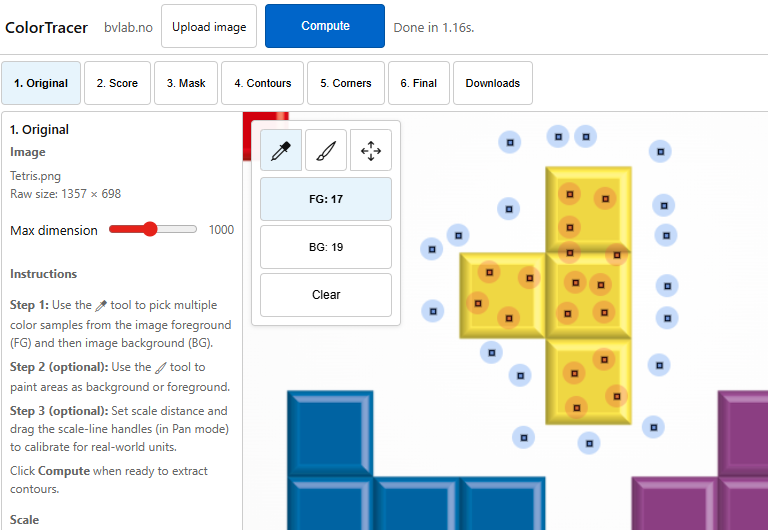
Upload an image using the button in the header. Then use the eyedropper tool to pick color samples:
- FG (foreground): Click on at least 2 points of the object you want to keep
- BG (background): Click on at least 2 points of what you want removed
More samples usually improve the result. Use the Clear button to start over.
Step 2 (optional): Paint corrections
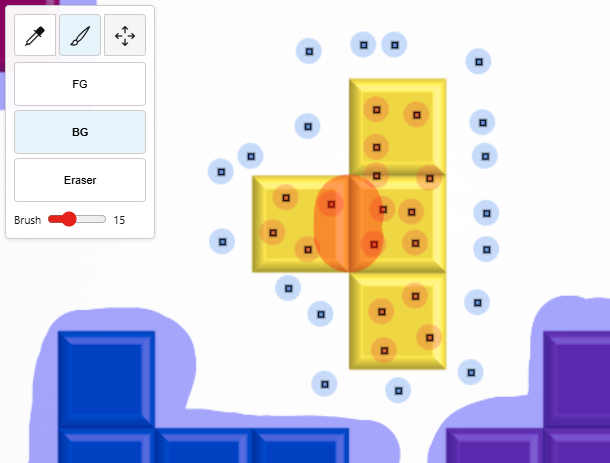
If the automatic separation misses some areas, switch to the brush tool to paint:
- FG — mark areas that should be foreground
- BG — mark areas that should be background
- Eraser — remove paint strokes
Adjust brush size with the slider. This step is optional.
Step 3 (optional): Calibrate scale
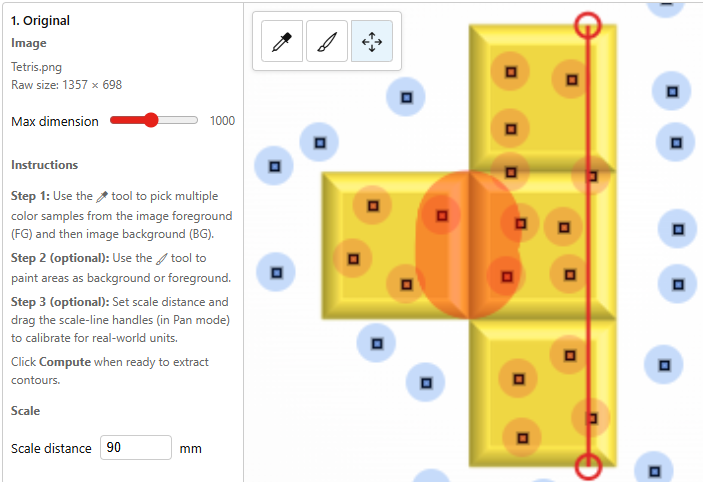
For real-world dimensions in exports (mm), add a scale line:
- Switch to Pan mode
- Drag the red scale-line endpoints to span a known distance in the image
- Enter the real length in the Scale distance field (e.g. 100 mm)
Exports will use this for SVG/DXF/STL units.
Compute and review
Click Compute when you have at least 2 FG and 2 BG samples. The tool will:
- Build a score map (tab 2)
- Create a binary mask (tab 3)
- Refine contours and corners (tabs 4–5)
- Show the final simplified result (tab 6)
If the mask is wrong, try adjusting the Cutoff (tab 3) or add more paint (step 2), then Compute again.
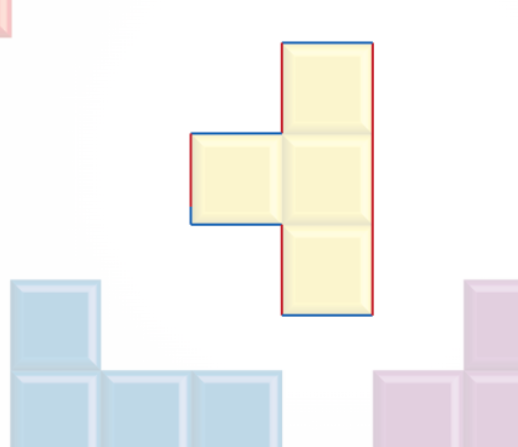
Export
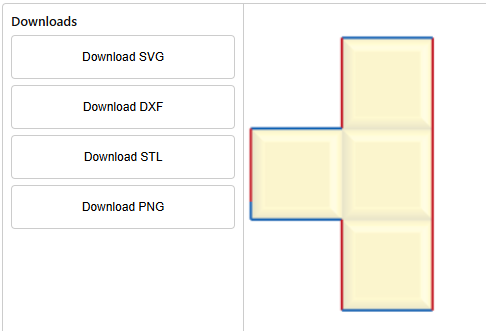
Go to the Downloads tab to export:
- SVG — vector graphics for design software
- DXF — CAD format for CNC, laser cutters
- STL — 3D mesh for printing
- PNG — raster with transparent background and soft edges
Tips
- Max dimension — Lower values resize the image and speed up Compute; higher values preserve detail.
- Cutoff — Below 0.5 = more foreground; above 0.5 = more background.
- Corner detection — Enable in tab 5 (Corners) if your object has sharp corners, e.g. technical drawings.
- Simplify — Reduces vertices for cleaner SVG/DXF; turn off if you need maximum precision.